
Why Is TikTok Video Blurry After Download? (And How to Fix It)
You finally find a TikTok video worth saving. You copy the link, download it, open the file, and it looks blurry. Not slightly blurry, but noticeably worse than it looked inside the TikTok app. The whole thing feels frustrating, especially when you have no idea what went wrong.
Here’s the thing, your downloader probably isn’t broken. A blurry TikTok video after download is one of the most common complaints people have, and in most cases, the fix is simpler than you’d expect.
In this guide, you’ll learn exactly why downloaded TikTok videos sometimes look blurry, what’s actually causing it, and how to get the best quality possible every single time using our TikTok Video Downloader.
Why Is Your TikTok Video Blurry After Download?
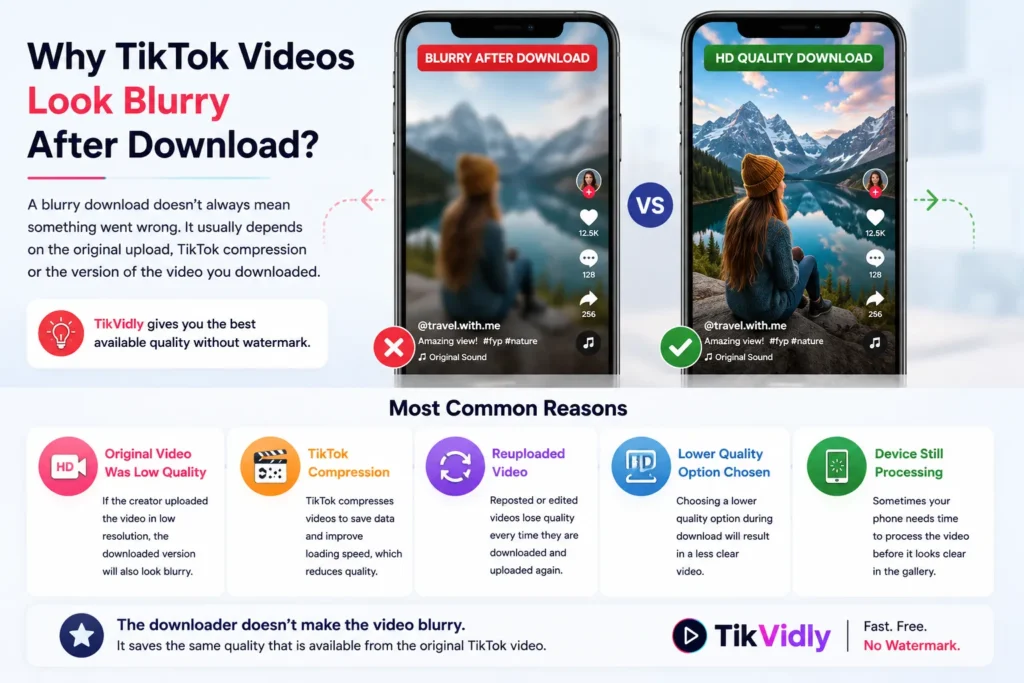
The first thing to understand is that a downloader doesn’t create video quality, it simply saves whatever quality already exists in the original TikTok video. If the source video isn’t sharp, the downloaded version won’t be either. No tool in the world can add details that were never there to begin with.
TikTok also automatically compresses videos after they’re uploaded. This helps videos load faster and reduces storage on their servers, but it comes at a cost, some of the original sharpness gets lost in the process. What you see inside the TikTok app is sometimes a streamed version that looks slightly better than the actual file underneath.
Once you understand this, the reason behind most blurry downloads becomes much clearer.
Most Common Reasons Your TikTok Video Looks Blurry
Most blurry downloads happen because of one of the following reasons.
The Original Video Was Uploaded in Low Quality
This is the most straightforward reason. Not every creator films in HD. Some videos are recorded on older phones, in poor lighting, or with lower camera settings. If the original upload wasn’t sharp, every downloader will give you the same result because a higher quality version simply doesn’t exist.
TikTok Compressed the Video
TikTok compresses almost every video that gets uploaded to its platform. This compression reduces file size and helps videos stream smoothly, but it also removes some visual detail, especially in fast-moving scenes, small text, and fine textures. This is completely normal and happens across almost every social media platform.
You Downloaded a Reposted Video
Many popular TikTok videos get shared, downloaded, re-edited, and uploaded again by other accounts. Every time this happens, the video loses a little more quality. If you’re downloading a repost instead of the original creator’s upload, you’re already starting with a compressed version of a compressed version. Whenever possible, go directly to the original creator’s post.
You Selected a Lower Quality Option
Some downloaders offer multiple quality options. If you accidentally chose a standard quality version instead of the highest available resolution, the downloaded file will naturally look softer. Always pick the HD option when it’s available, it makes a real difference.
Your Phone Is Still Processing the File
Sometimes the video only looks blurry for the first few seconds after downloading. Your phone may still be generating the preview or finishing the file processing in the background. Give it a moment, close the file, and open it again. In many cases the quality looks completely normal once processing is done.
How to Download TikTok Videos in the Best Quality
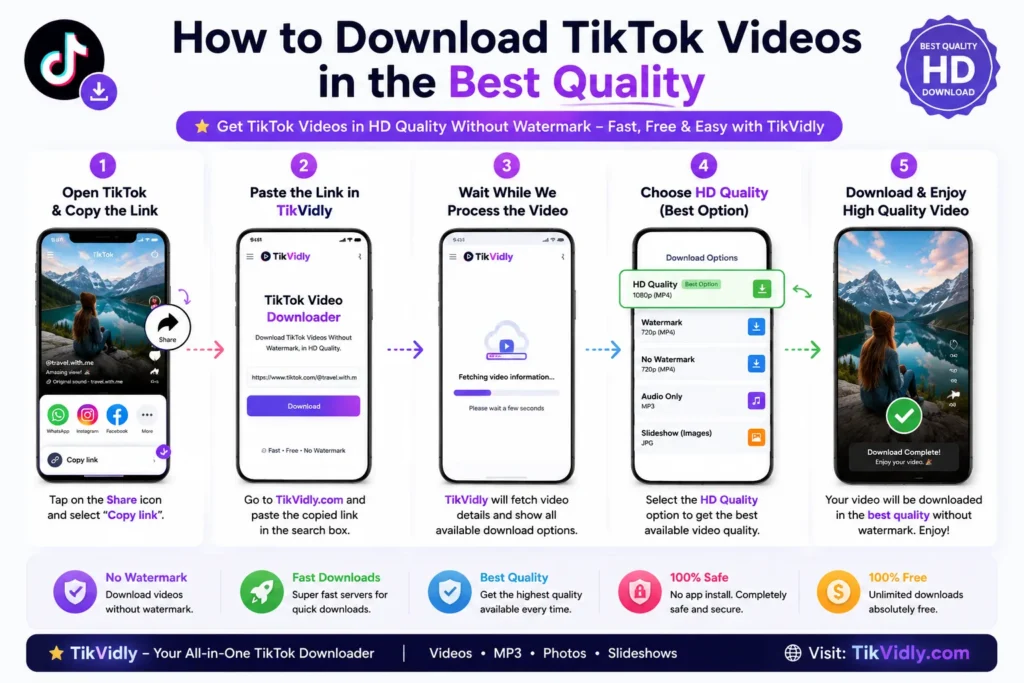
Getting the best quality download is easier than most people think. The key is starting from the right place.
Step 1: Find the Original Post
Always go to the original creator’s TikTok profile and find the video there. Avoid downloading from reposts or shared versions, these are almost always lower quality than the original.
Step 2: Copy the Video Link
Tap the Share button on the video and select Copy Link. This gives you the direct video URL which TikVidly needs to process the download.
Step 3: Open TikVidly
Go to TikVidly’s TikTok Video Downloader in your browser. No app, no account, no sign-in needed.
Step 4: Paste the Link
Paste the copied URL into the input box and wait a few seconds while TikVidly processes the video and shows your download options.
Step 5: Always Choose the HD Option
When TikVidly shows the available download options, always select the HD version. This is the highest quality that exists for that video and will give you the sharpest result possible.
Why TikVidly Gives You the Best Available Quality
A lot of downloaders quietly compress videos one more time before offering them for download. That extra compression step is often invisible to the user but it further reduces the quality of the final file.
TikVidly doesn’t do that. It retrieves the highest quality version that TikTok makes publicly available and delivers it to you without any additional modifications or compression. What you download is exactly what was there in the original source, nothing removed, nothing altered.
On top of that, TikVidly removes the watermark without touching the video quality. A lot of people assume that watermark removal reduces sharpness, but the two are completely separate. You get a clean, watermark-free file at the best quality available.
Everything works directly in your browser — no software to install, no account to create, no unnecessary steps. Just paste the link and download.
Tips to Avoid Blurry TikTok Downloads
A few simple habits will consistently get you better results.
Always download from the original creator’s post, not from a repost or a video someone else shared. Original uploads give you the best quality that exists for that video.
When TikVidly shows multiple download options, always pick the highest quality one. The difference between standard and HD is often clearly visible, especially on larger screens.
After downloading, give your phone a few seconds before judging the quality. Some devices need a moment to finish processing the file before the full quality becomes visible.
And remember, if the original TikTok video was blurry to begin with, no downloader can fix that. The quality of the download will always match the quality of the source.
Common Problems and Solutions
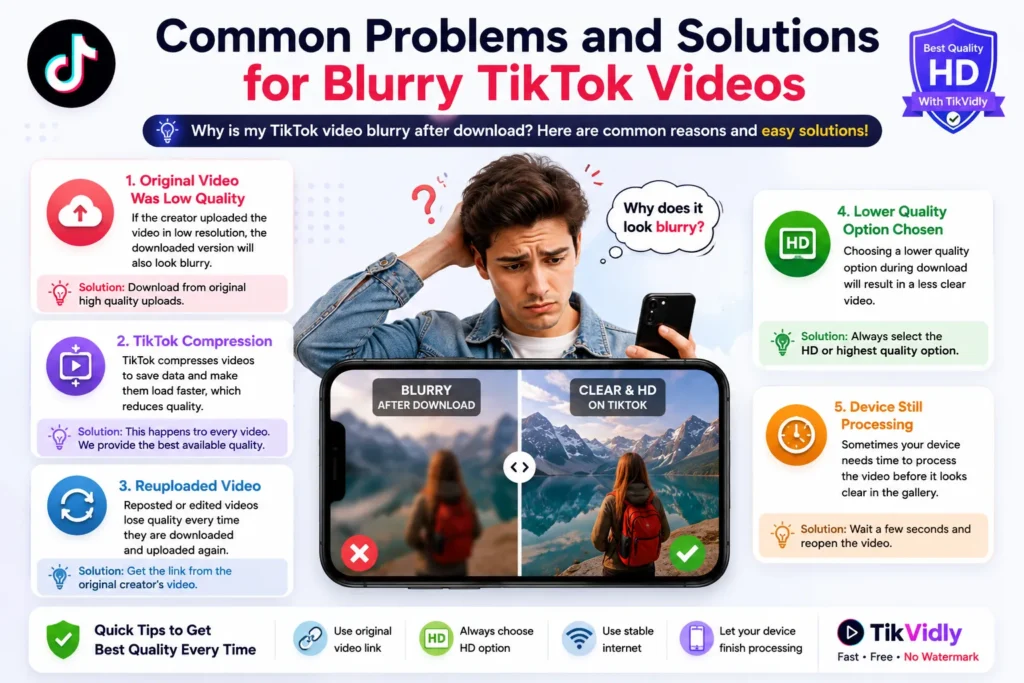
The Video Looks Blurry Right After Downloading
Don’t judge the quality immediately. Close the file, wait a few seconds, and reopen it. Many phones process video files in the background after downloading, and the quality often looks much better once that’s done.
The HD Option Is Not Available
This means the original creator didn’t upload the video in HD. TikVidly can only offer the quality that actually exists, if HD wasn’t uploaded, it can’t be downloaded.
The Downloaded Video Looks Worse Than It Did on TikTok
The TikTok app sometimes streams a slightly enhanced version that looks better than the actual uploaded file. This is a TikTok-side behavior and not something any downloader can change. The downloaded file always reflects the real source quality.
The Video Is Pixelated Throughout
Heavy compression in the original upload causes pixelation. Unfortunately, no tool can restore image detail that was removed before the video was ever uploaded to TikTok.
The Video Looks Sharp on Wi-Fi but Blurry in the Gallery
Your phone may be showing a low-resolution preview while the full file loads in the background. Reopen the video after a few seconds and the quality should be normal.
Frequently Asked Questions
Why is my downloaded TikTok video blurry?
The most common reasons are TikTok’s automatic compression, a low quality original upload, downloading a reposted video, or accidentally choosing a lower quality download option. In most cases, downloading directly from the original creator’s post and selecting the HD option fixes the problem.
Can TikVidly improve video quality?
No downloader can improve quality beyond what exists in the original source. TikVidly gives you the highest quality available from the original TikTok video without any additional compression or modifications.
How can I download TikTok videos in HD?
Always copy the link from the original creator’s post and choose the HD download option in TikVidly. If an HD version was uploaded by the creator, TikVidly will make it available for download.
Why does the video look clear on TikTok but blurry after downloading?
TikTok sometimes streams a slightly enhanced version inside the app while the actual uploaded file is more compressed. The downloaded file always reflects the real source quality, not the streamed preview.
Does removing the watermark reduce video quality?
No. Watermark removal and video quality are completely separate. TikVidly removes the watermark without touching the video quality at all.
Is TikVidly free to use?
Yes, completely free. You can download public TikTok videos without watermark directly from your browser — no subscription, no registration, no hidden charges
Final Thoughts
A blurry TikTok video after download is almost never the downloader’s fault. In most cases, it comes down to TikTok’s compression, a low quality original upload, or downloading a repost instead of the original video.
The fix is simple, always download from the original creator’s post, pick the HD option when it’s available, and give your phone a moment to finish processing the file. Do those three things and you’ll get the best quality that exists for that video every single time.
If you regularly save TikTok content, TikVidly has everything you need in one place. Download TikTok videos without watermark, save TikTok HD videos, convert TikTok slideshows to MP4, download TikTok photos without watermark, or extract TikTok audio as MP3, all free, no sign-up, works on any device.